> For the complete documentation index, see [llms.txt](https://docs.supervisely.com/llms.txt). Markdown versions of documentation pages are available by appending `.md` to page URLs; this page is available as [Markdown](https://docs.supervisely.com/data-organization/project-dataset/project-settings.md).
# Project Settings
Configure project-level settings in Supervisely, including the labeling interface and Read-only mode to protect your data from accidental changes.
Every project in Supervisely has a dedicated **Settings** tab where you can configure the labeling interface and control how the project behaves in the UI. The available settings depend on the project type — Images projects have an extended set of options split across two toolbox tabs, while Videos projects have a single, focused settings page.
## Accessing Settings
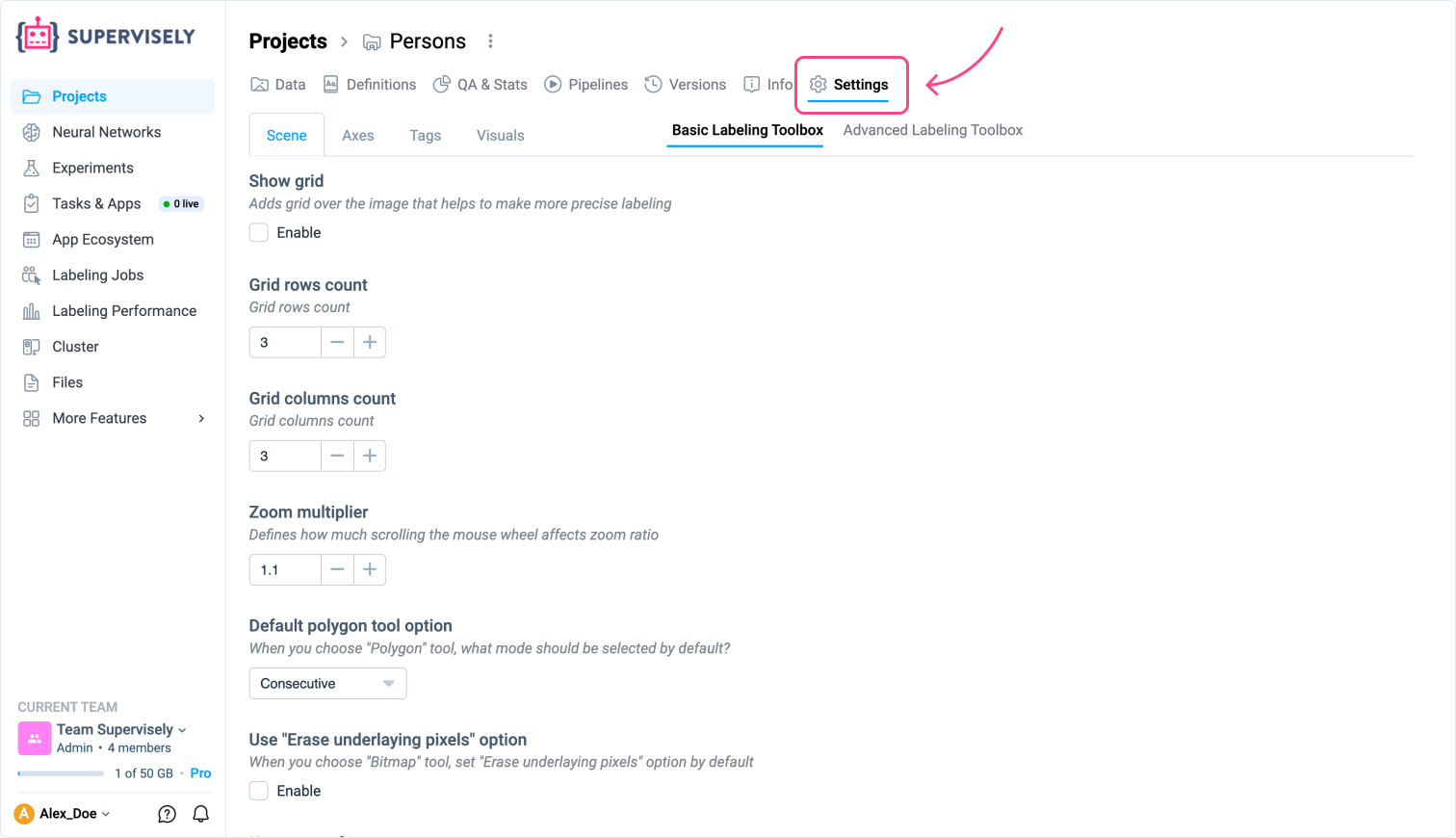
Open any project and click the **Settings** tab in the top navigation bar.
* For **Images** projects, the tab is divided into two sections: **Basic Labeling Toolbox** and **Advanced Labeling Toolbox**.
* For **Videos** projects, all settings are available on a single page.
***
## Images Project
### Basic Labeling Toolbox
The Basic Labeling Toolbox is organized into four sub-tabs: **Scene**, **Axes**, **Tags**, and **Visuals**.
#### Scene
* **Show grid** — overlays a grid on the image to help with precise labeling.
* **Grid rows count** — number of grid rows (default: 3).
* **Grid columns count** — number of grid columns (default: 3).
* **Zoom multiplier** — controls how much the mouse wheel affects the zoom level (default: 1.1).
* **Default polygon tool option** — default mode when the Polygon tool is selected (e.g., Consecutive).
* **Use "Erase underlaying pixels" option** — pre-enables the "Erase underlying pixels" option when the Bitmap tool is selected.
* **Keep zoom factor** — preserves the current zoom level when switching between images.
* **Show keypoints labels mode** — controls when keypoint labels are visible: Always, On hover, or Never.
* **Object dashed borders** — objects carrying specified tags are rendered with a dashed border.
* **Hook on image change** — a JavaScript hook that fires whenever the active image changes.
* **Open properties when edit** — automatically opens the image/object properties panel when editing begins.
* **Transparent parts color** — color used to fill transparent areas of an image (default: #FFFFFF).
* **Show point position** — displays the cursor coordinates while dragging a point.
* **Use only original images** — disables image conversion and compression.
* **Default Smart Model** — the Smart Tool model pre-selected in the annotation toolbox.
#### Axes
* **Enable axes on rectangle** — shows auxiliary crosshair lines while drawing a rectangle.
* **Enable axes on smart object** — shows auxiliary crosshair lines while using the Smart tool.
* **Enable axes on graph** — shows auxiliary crosshair lines while creating a graph (skeleton) object.
* **Axes opacity** — opacity of the auxiliary crosshair lines.
* **Axes border size** — thickness of the auxiliary crosshair lines.
* **Axes main color** — color of the primary auxiliary line.
* **Axes additional color** — color of the secondary auxiliary line.
#### Tags
* **Category separator** — a character used to split tag names into hierarchical categories.
* **Show tags mode** — when to display tags when no tool is active: Never, On hover, or Always.
* **Tags location over objects** — where tags appear relative to the object: Top point or Top left point.
* **Display class** — shows the object class as a tag label.
* **Display author** — shows the user who created the object as a tag label.
* **Display tag author** — shows the user who created a tag.
* **Display object size** — shows the size of the object as a label.
* **Multiple tags mode** — allows the same tag to be applied to an object more than once.
* **Toggle tags** — pressing a tag hotkey again removes the tag instead of adding a duplicate.
#### Visuals
* **Border size** — border width for all visible figures in pixels (or `auto`).
* **Show bitmap contours** — toggles the visibility of bitmap mask contours.
* **Polygon edit fill** — fills the polygon area while it is being drawn or edited.
* **Points size** — size of annotation points in pixels.
* **Point shape radius** — radius of the point shape in pixels.
* **Rectangle opacity** — fill opacity for rectangle objects.
* **Rectangle border size** — border thickness for rectangle objects.
* **Default opacity** — default fill opacity applied to all figures.
* **Default brush size** — default radius of the brush tool.
* **Project labeling interface** — selects a specialized labeling interface tailored to a specific industry or annotation scenario.
* **Group Images mode** — enables grouping of images by a selected tag.
* **Group Images by Tag** — the tag used to group images (only active when Group Images mode is enabled).
* **Group Images sync mode** — synchronizes pan, zoom, and figure visibility across images in a group.
* **Show all objects from the group on sync** — displays all objects from the entire group instead of only those belonging to the current image; requires sync mode to be enabled.
* **Show hotkeys hint** — shows a hotkey reference overlay in the labeling toolbox.
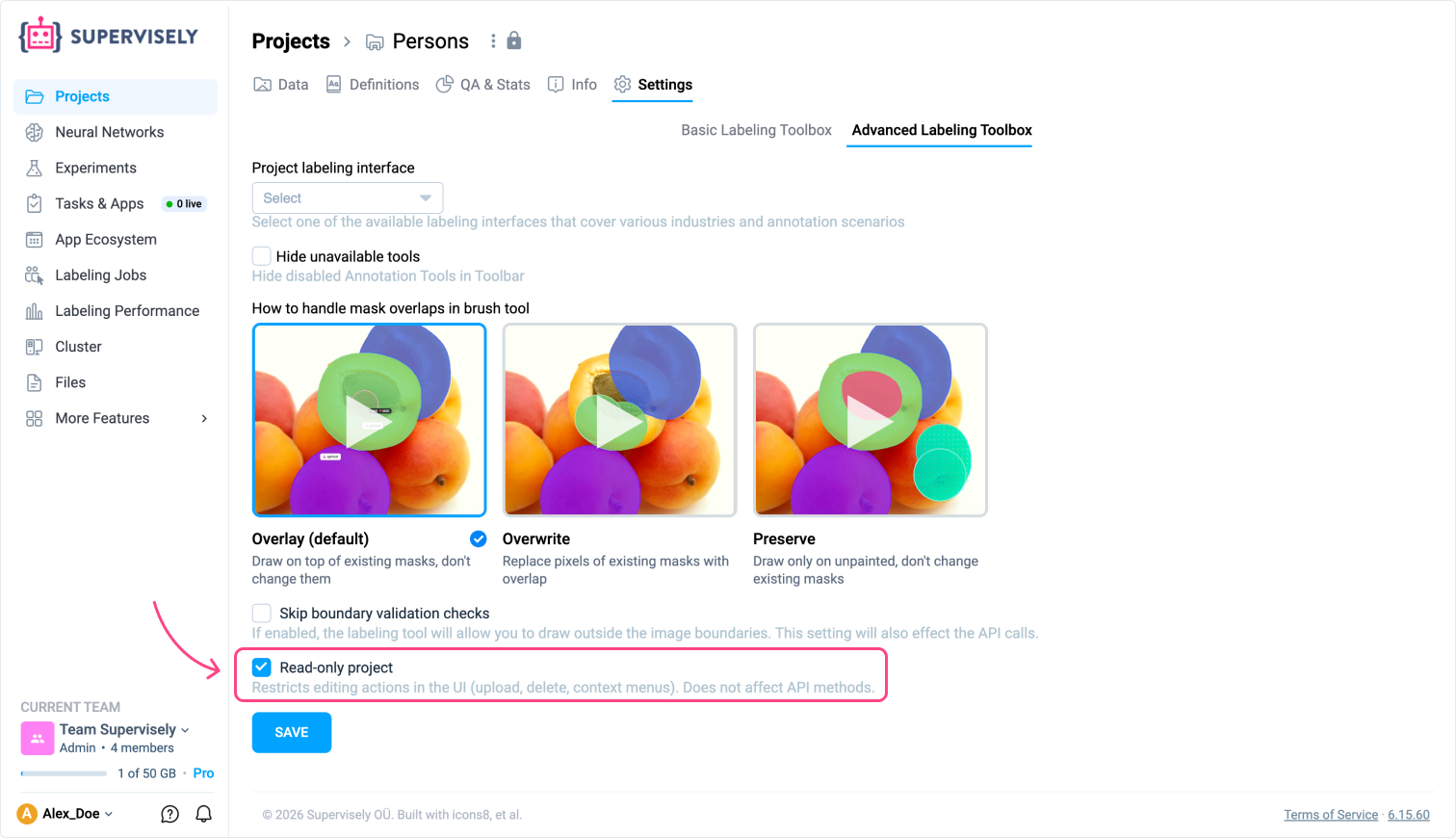
### Advanced Labeling Toolbox
* **Project labeling interface** — selects a specialized labeling interface tailored to a specific industry or annotation scenario.
* **Hide unavailable tools** — hides disabled annotation tools from the toolbar instead of showing them as inactive.
* **How to handle mask overlaps in brush tool** — defines behavior when brush strokes overlap existing masks:
* **Overlay (default)** — draws on top of existing masks without modifying them.
* **Overwrite** — replaces the pixels of existing masks where they overlap.
* **Preserve** — draws only on unpainted areas; existing masks are never changed.
* **Skip boundary validation checks** — allows drawing outside the image boundaries; also affects API calls.
* **Read-only project** — restricts all editing actions in the UI (upload, delete, context menus). Does not affect API methods.
***
## Videos Project
Videos projects have a single **Settings** page without the Basic/Advanced split.
* **Project labeling interface** — selects a specialized labeling interface tailored to a specific industry or annotation scenario.
* **Hide unavailable tools** — hides disabled annotation tools from the toolbar instead of showing them as inactive.
* **Show object trajectories** — displays the movement trajectories of annotated objects across frames. Useful when labeling footage from a static CCTV camera.
* **How to handle mask overlaps in brush tool** — defines behavior when brush strokes overlap existing masks:
* **Overlay (default)** — draws on top of existing masks without modifying them.
* **Overwrite** — replaces the pixels of existing masks where they overlap.
* **Preserve** — draws only on unpainted areas; existing masks are never changed.
* **Skip boundary validation checks** — allows drawing outside the frame boundaries; also affects API calls.
* **Read-only project** — restricts all editing actions in the UI (upload, delete, context menus). Does not affect API methods.
***
## Volume Project
Volume projects have a single **Settings** page without the Basic/Advanced split.
* **Hide unavailable tools** — hides disabled annotation tools from the toolbar instead of showing them as inactive.
* **How to handle mask overlaps in brush tool** — defines behavior when brush strokes overlap existing masks:
* **Overlay (default)** — draws on top of existing masks without modifying them.
* **Overwrite** — replaces the pixels of existing masks where they overlap.
* **Preserve** — draws only on unpainted areas; existing masks are never changed.
***
## Point Cloud and Episodes Project
Point Cloud and Episodes projects have a single **Settings** page without the Basic/Advanced split.
* **Hide unavailable tools** — hides disabled annotation tools from the toolbar instead of showing them as inactive.
***
## Read-only mode
{% hint style="info" %}
Images and Videos only
{% endhint %}
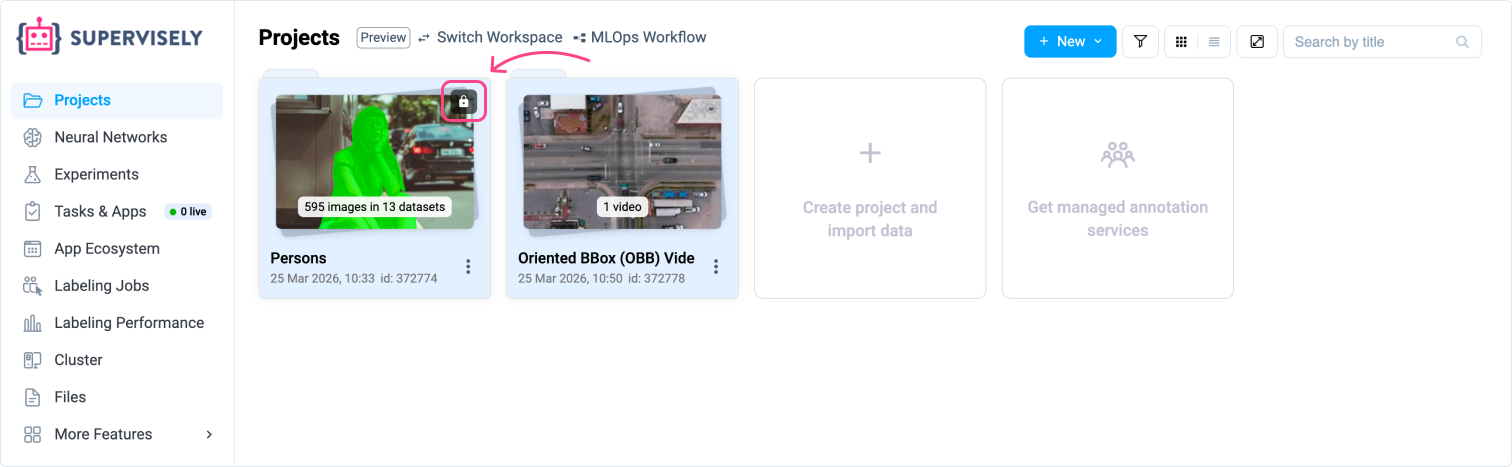
The **Read-only project** setting is available for both Images and Videos projects. It puts the project into a protected state that prevents accidental edits through the UI while keeping full access for viewing and exporting data.
### What you can do in Read-only mode
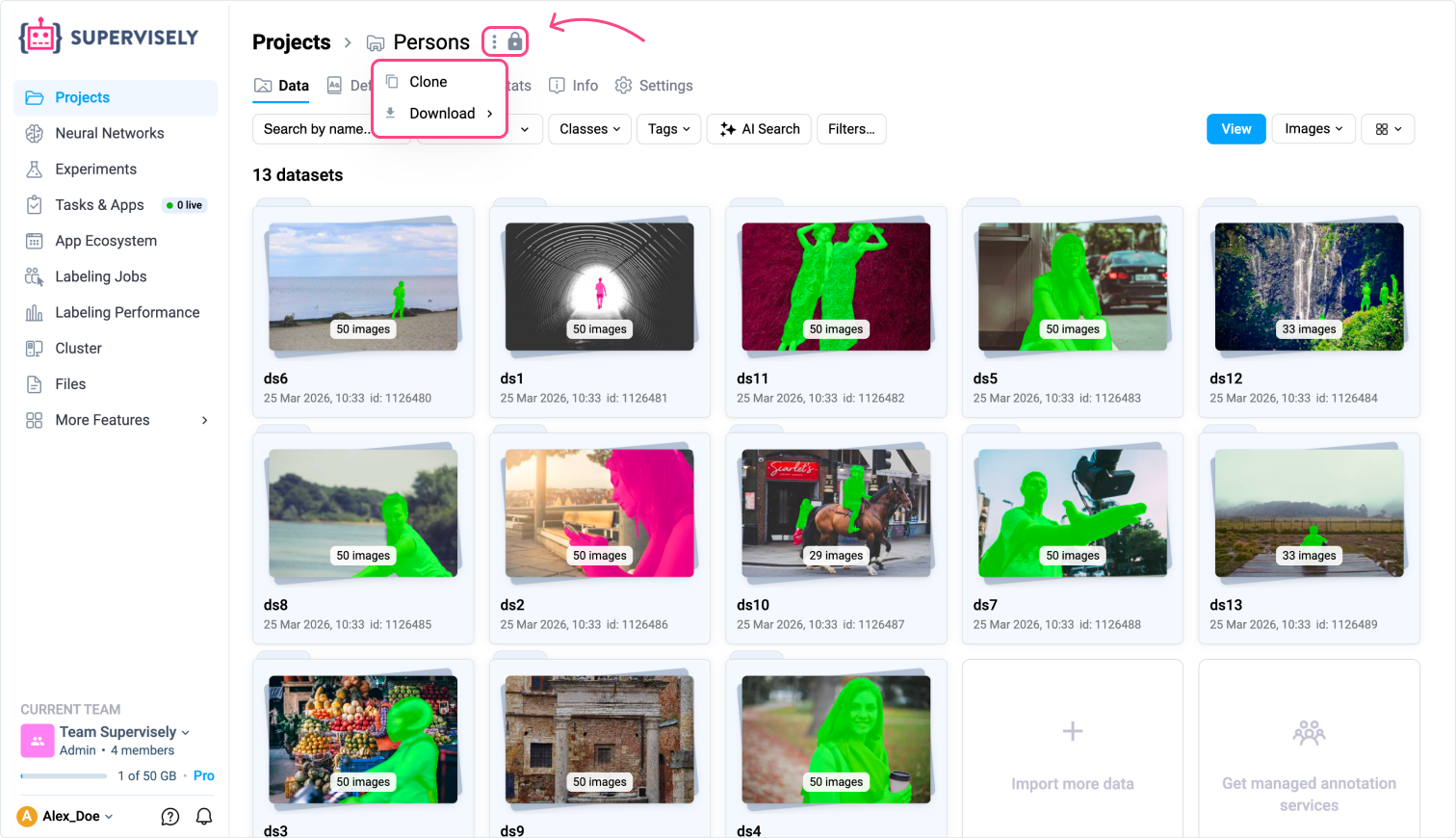
* Browse the project in the **project panel** — gallery, table view, filters, AI Search, QA & Stats — exactly as with a regular project.
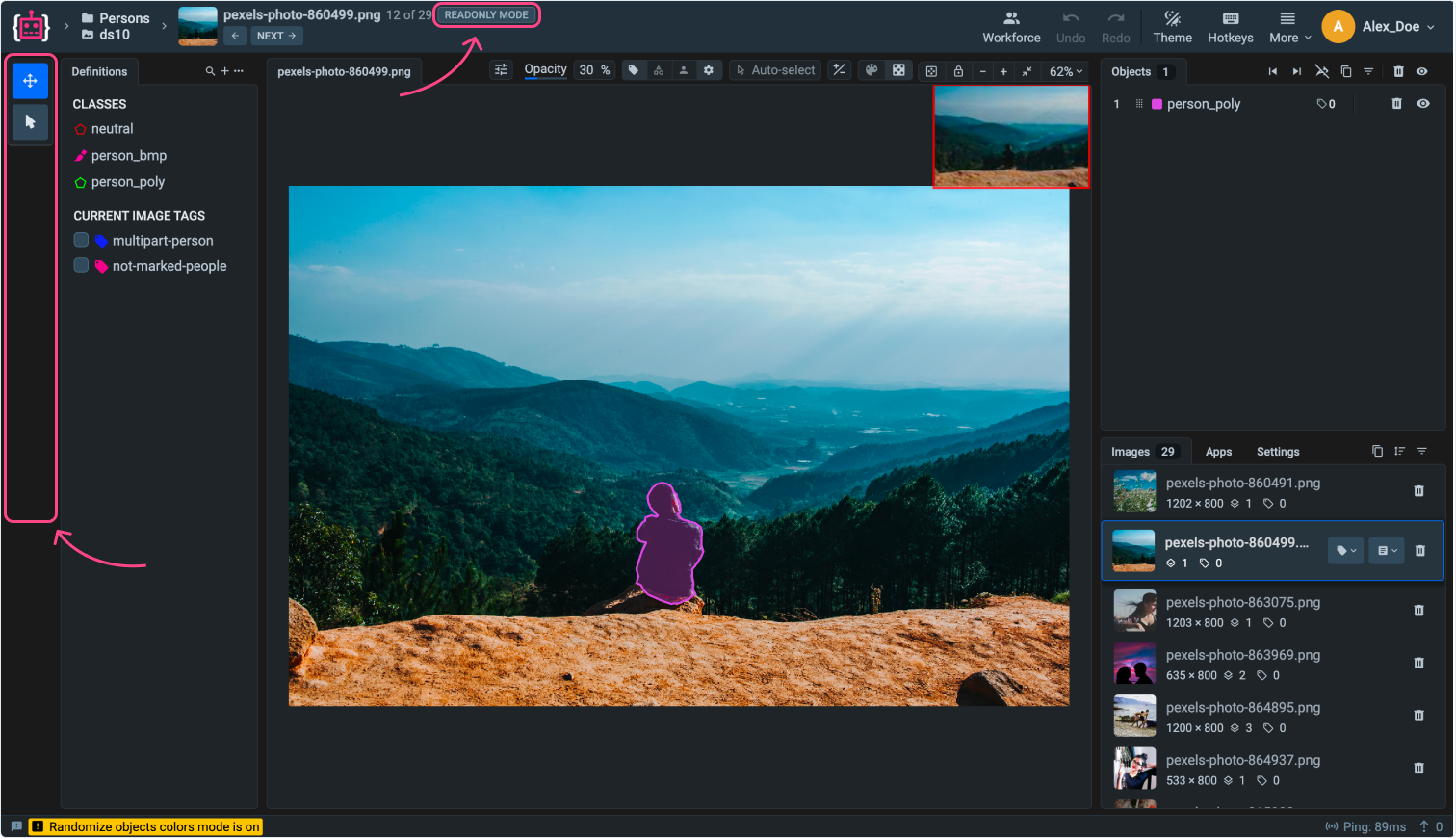
* Open images or videos in the **labeling toolbox** to visualize annotations.
* **Clone** the project to another workspace.
* **Download** and export data using ecosystem apps.
### What is restricted in Read-only mode
All UI actions that modify the project or its data are disabled, including:
* Uploading or deleting images, videos, or datasets.
* Editing, adding, or removing annotations.
* Renaming or deleting the project and datasets.
* Context menu actions that change data state.
{% hint style="info" %}
**Note:** Read-only mode only restricts the UI. API access is not affected — programmatic operations via the Supervisely SDK or REST API remain fully available.
{% endhint %}
### Enabling and disabling Read-only mode
**For Images projects:**
1. Open the project and navigate to **Settings → Advanced Labeling Toolbox**.
2. Check the **Read-only project** checkbox.
3. Click **Save**.
**For Videos projects:**
1. Open the project and navigate to **Settings**.
2. Check the **Read-only project** checkbox.
3. Click **Save**.
To allow editing again, uncheck the **Read-only project** checkbox and click **Save**.
You can also toggle Read-only mode programmatically using the [`set_read_only`](https://supervisely.readthedocs.io/latest/sdk/supervisely.api.project_api.ProjectApi.html?h=set_read#supervisely.api.project_api.ProjectApi.set_read_only) method of the Supervisely Python SDK.
{% hint style="success" %}
**Tip:** Use Read-only mode to lock down a project after reaching a stable state, so collaborators can safely browse and export data without the risk of accidentally modifying it.
{% endhint %}